
Introduction
What if you could hand an AI a simple idea, let it do the research, pick the stocks, and then place the trades in your own trading account, while you stay firmly in charge of every decision? That is exactly what becomes possible when Claude is connected to Dhan through the Model Context Protocol (MCP).
This guide walks you through the complete workflow, from adding the Dhan connector to Claude, logging in securely and reading your portfolio, to researching a market theme, building a five-stock basket, confirming the plan and verifying live orders on the Dhan platform. Every step explains what to do, why you are doing it, how it works and what you should see when it succeeds.
Why Generic AI Is Not Enough for Trading
A standard AI chat assistant answers from general information gathered from across the internet. It does not know your account, your balance, your holdings or your trading style. Ask it what your account balance is and it simply has no way to know, because that number is private, changes constantly and does not exist on the public web.
For complete research-to-execution automation, the AI needs a secure, controlled way to talk to your broker. That link is MCP.
What Is MCP (Model Context Protocol)?
MCP stands for Model Context Protocol. Think of it as a bridge, or an AI connector, between your AI assistant and an external service. The connector between Claude and Dhan is the Dhan MCP. Once the bridge is built, Claude is no longer limited to public information. It can work with your real account data through a defined set of tools.
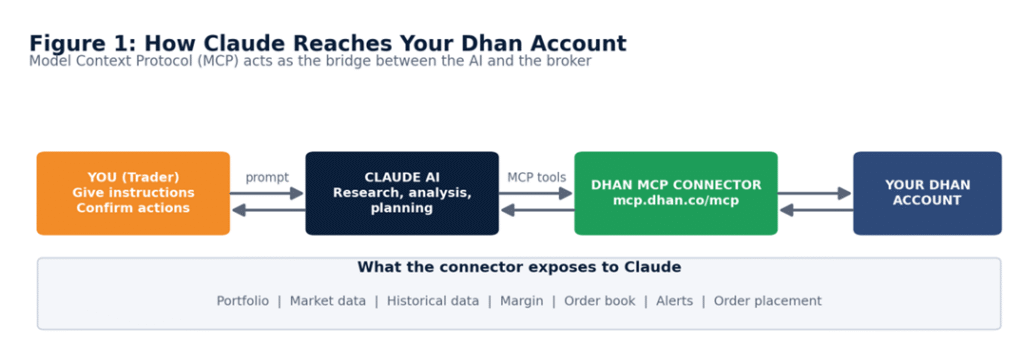
Figure 1: How Claude reaches your Dhan account: you instruct Claude, Claude calls the Dhan MCP connector, and the connector talks to your Dhan account.
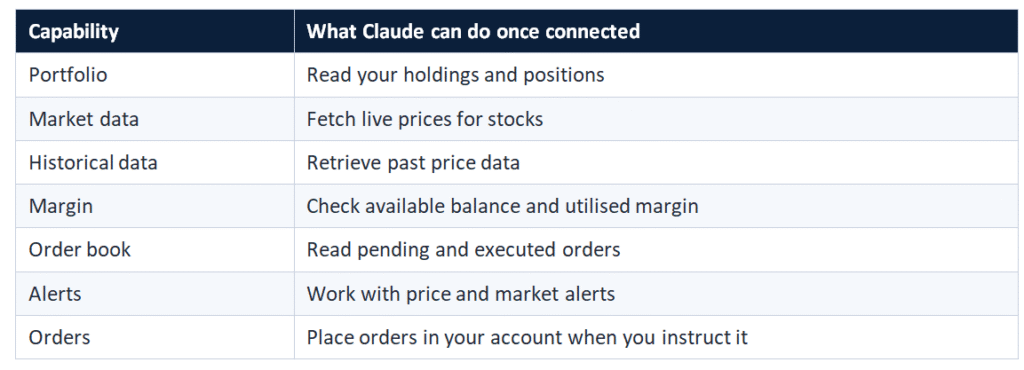
MCP is not limited to brokers. Connectors exist for many services such as Gmail, Google Drive and Google Sheets. Once an MCP is connected, the AI can work with the real account behind it.
You Stay in Control
Because the connector reaches account level, it is designed around one rule: you are always the decision maker. Claude acts only on your instruction. It proposes a plan, shows you the quantities and values, and waits for your confirmation before any order is placed.
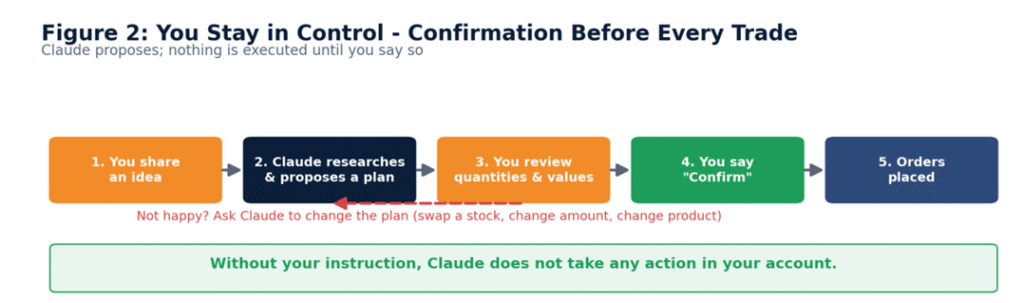
Figure 2: The confirmation loop: idea, research, plan, your review, your explicit confirmation, and only then order placement.
How a Nobel Prize–winning volatility model, a few AI prompts and a free desktop app can tell you how far Nifty may move tomorrow, next week or next month.
If you have only ever read the market through red and green candles, Supertrend and RSI, there is a whole layer of mathematics working behind every candle. Banks, hedge funds and proprietary trading desks around the world use it every day. In this guide you will learn what that model is, why it works, and, step by step, how to run it yourself on Nifty and on the 50 stocks of the index, without writing a single line of maths.
HANDLE ACCOUNT-LEVEL ACCESS CAREFULLY The connector can see and act on your Dhan account. Only add connectors from developers you trust, and review the tool permissions carefully (Step 4). |
How a Nobel Prize–winning volatility model, a few AI prompts and a free desktop app can tell you how far Nifty may move tomorrow, next week or next month.
If you have only ever read the market through red and green candles, Supertrend and RSI, there is a whole layer of mathematics working behind every candle. Banks, hedge funds and proprietary trading desks around the world use it every day. In this guide you will learn what that model is, why it works, and, step by step, how to run it yourself on Nifty and on the 50 stocks of the index, without writing a single line of maths.
Part 1: Connect Claude to Dhan
Step 1: Open the Connectors Settings
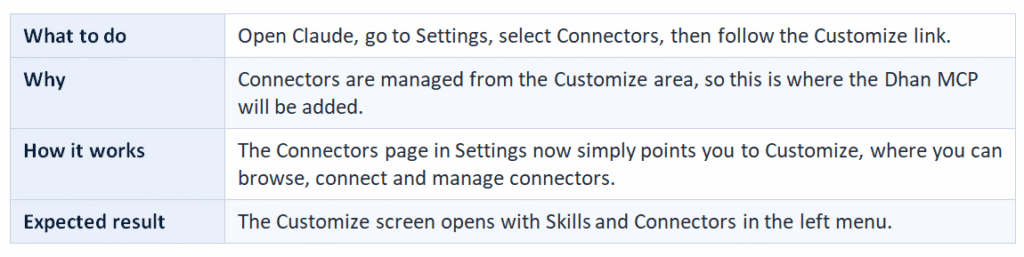
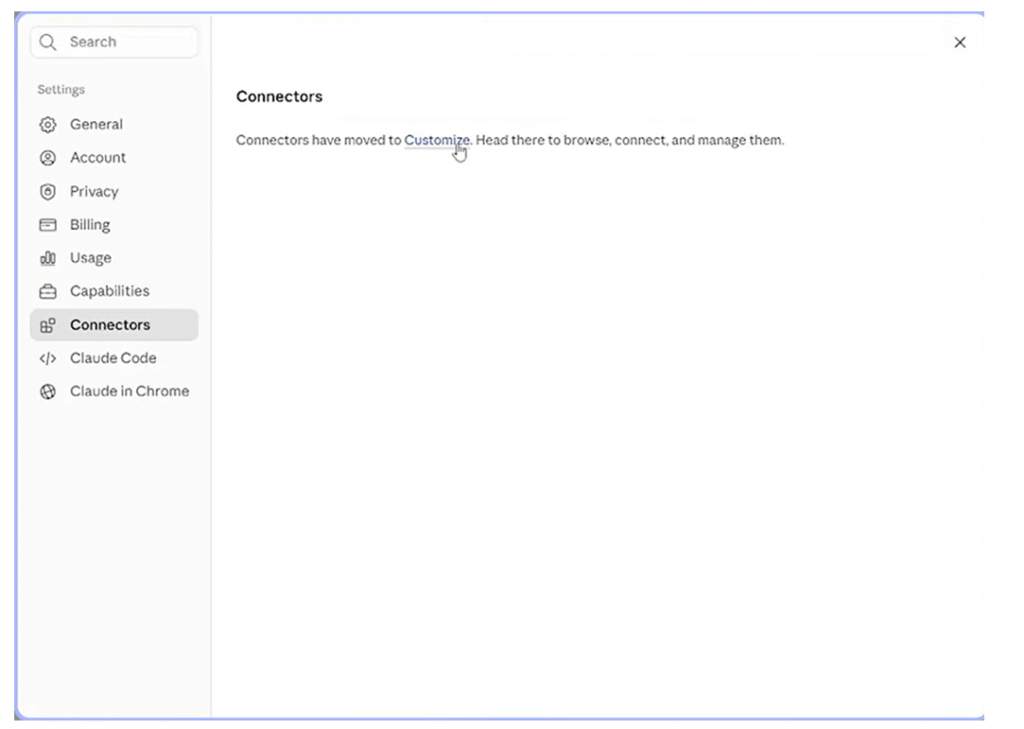
Figure 3: Settings > Connectors shows that connectors have moved to Customize. Click the Customize link.
FINDING THE DHAN MCP URL Search for “Dhan MCP” on Google or in Dhan’s documentation. The instructions there give you the connector URL used in Step 3. |
Step 2: Choose Add Custom Connector
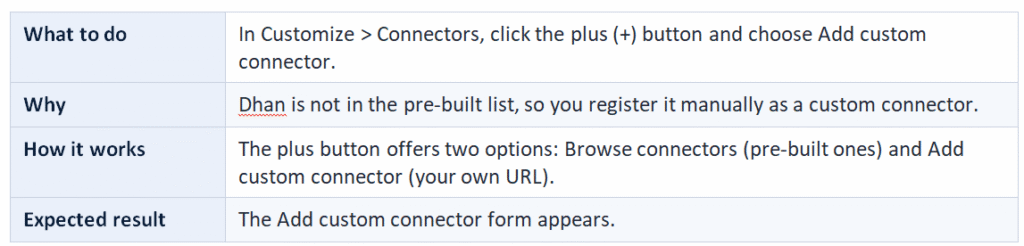
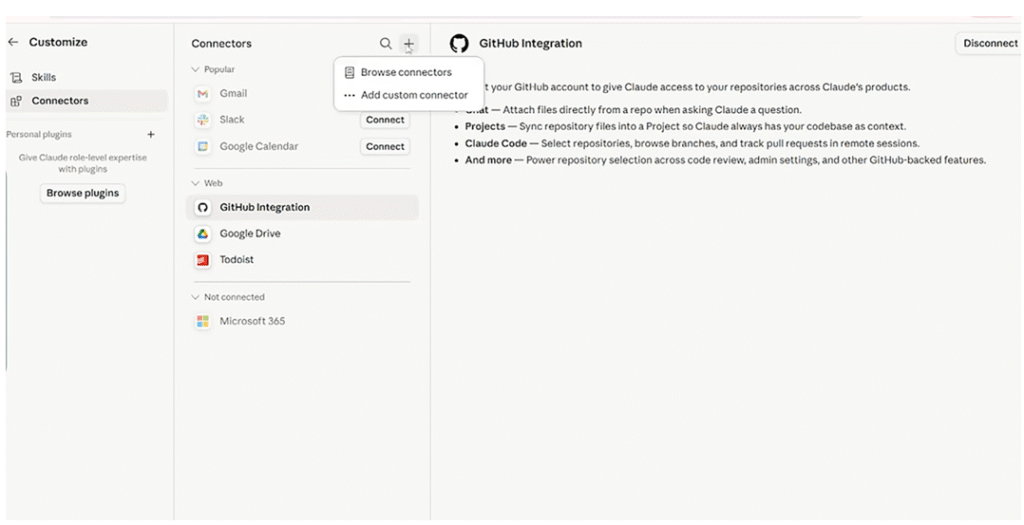
Figure 4: The plus (+) menu in Connectors offers Browse connectors and Add custom connector.
Step 3: Enter the Connector Name and URL
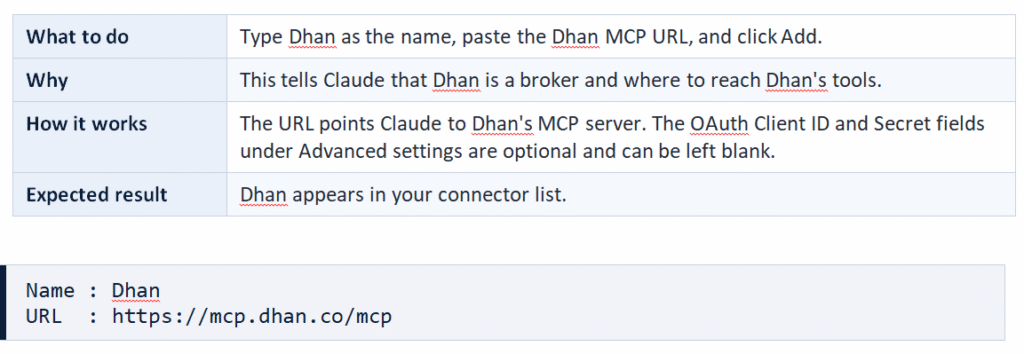
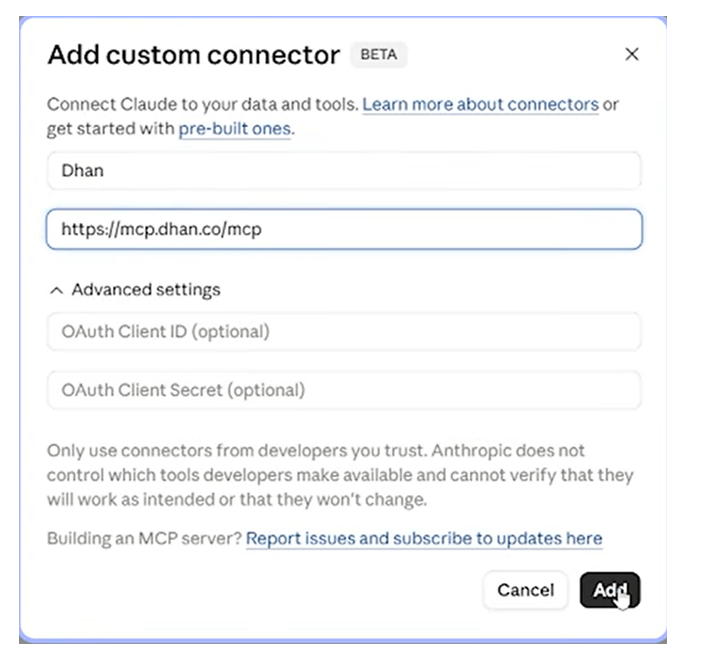
Figure 5: The Add custom connector form completed with the name Dhan and the Dhan MCP URL.
TRUST CHECK The form itself warns: only use connectors from developers you trust. Anthropic does not control which tools developers make available and cannot verify that they will work as intended or that they will not change. |
Step 4: Review the Tool Permissions
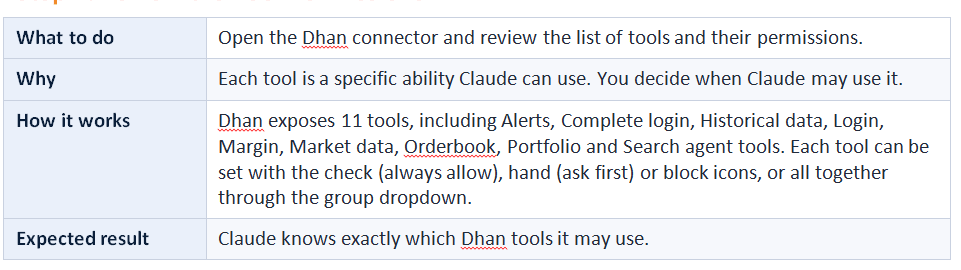
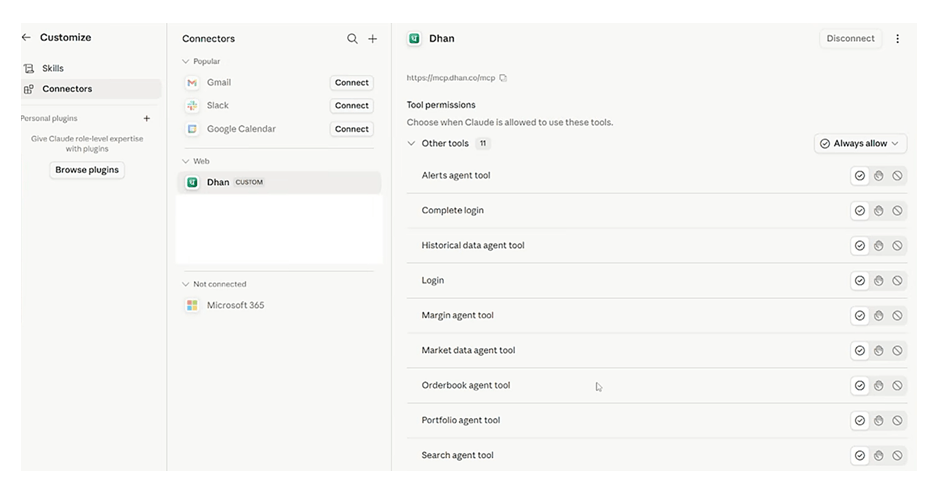
Figure 6: Dhan tool permissions. In this walkthrough all tools are set to Always allow.
ORDER CONFIRMATION STILL APPLIES Even with tools set to Always allow, the workflow in this guide keeps you in charge: Claude proposes the trades and waits for your explicit confirmation before placing orders. |
WANT EXTRA SAFETY? Set tools that can act on your account to the ask-first option so that you approve each use. |
Step 5: Check Whether You Are Connected
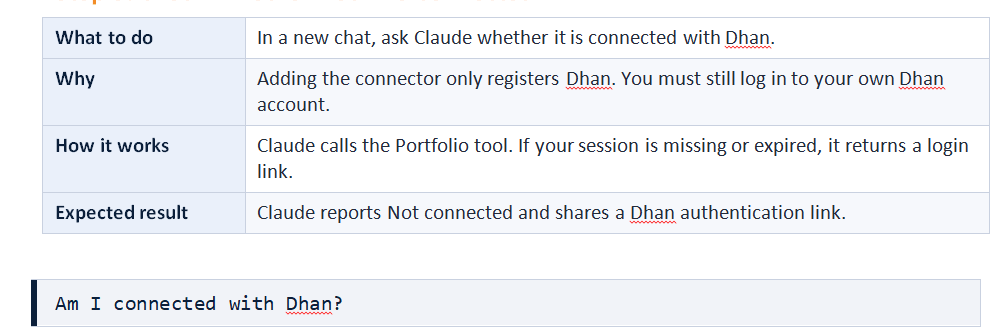
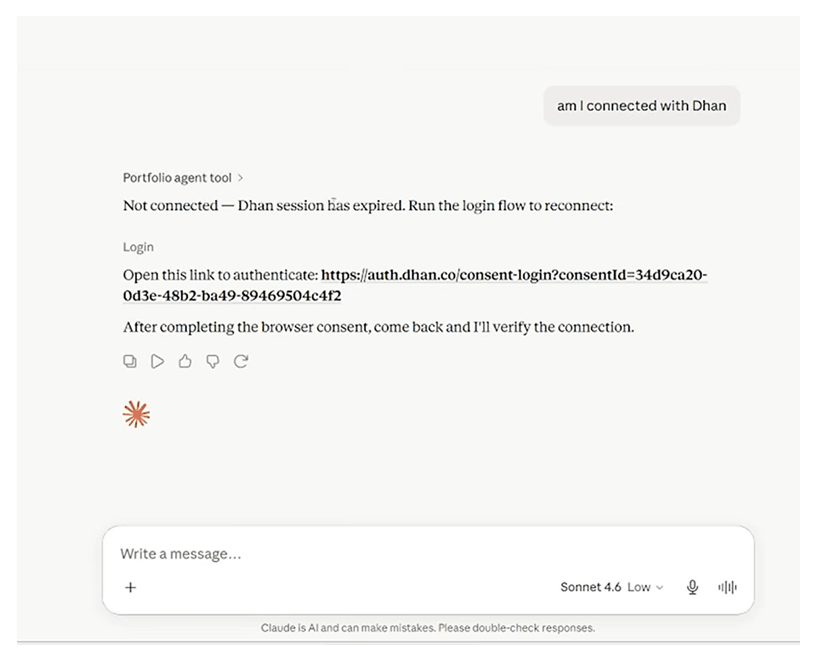
Figure 7: Claude reports that the Dhan session has expired and provides a login link to authenticate.
Step 6: Open the Authentication Link
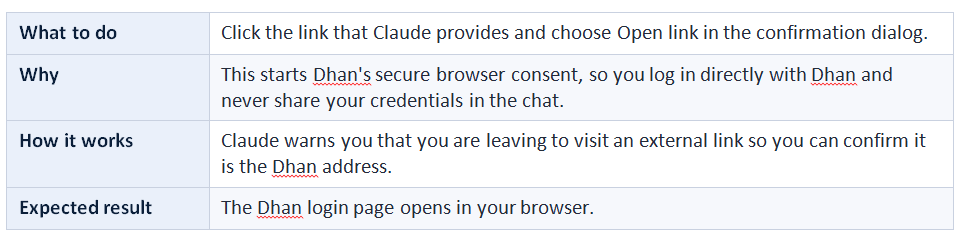
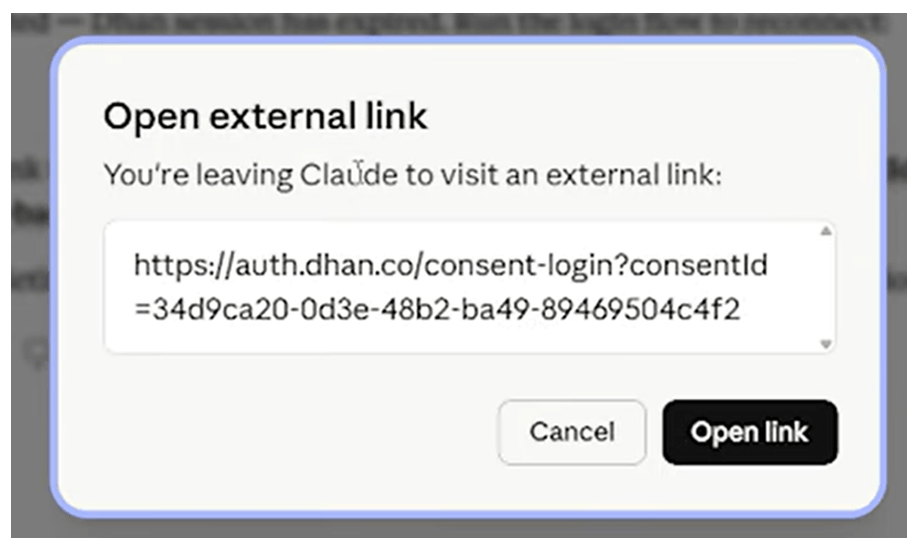
Figure 8: Claude asks for confirmation before opening the external Dhan consent-login link.
Step 7: Complete the Login and Consent
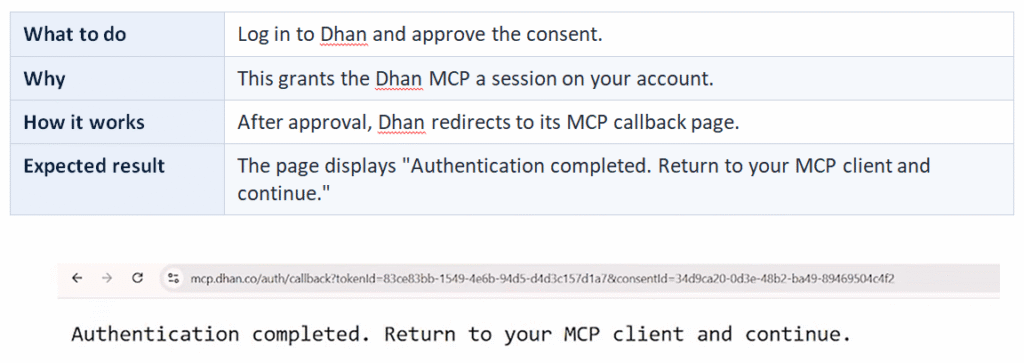
Figure 9: Dhan confirms that authentication is complete. Return to Claude and continue.
Step 8: Confirm the Login and Check Your Balance
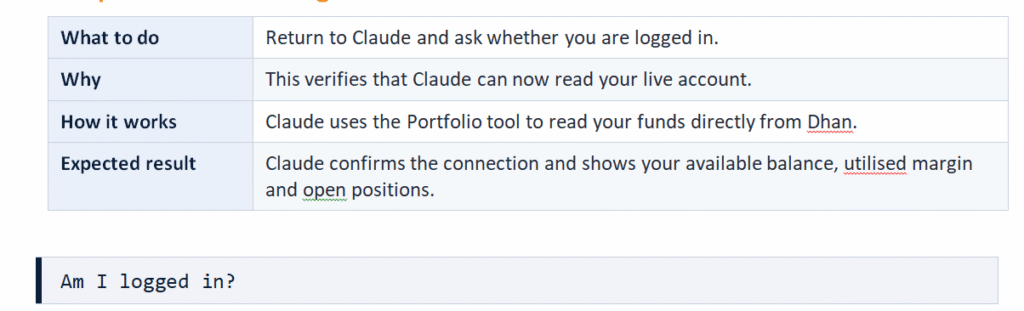
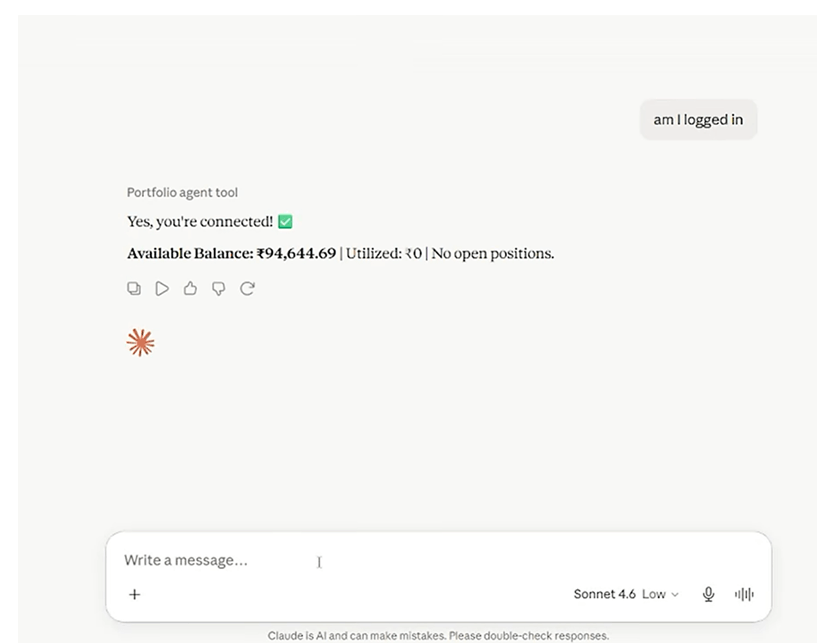
Figure 10: Claude confirms the connection: Available Balance ₹94,644.69, Utilised ₹0, no open positions.
Compare the figure with the balance shown in your Dhan terminal. It matches to the last decimal place. Claude cannot find this number anywhere on the internet. It is read from your account, live, through the MCP.
Step 9: Read Your Holdings
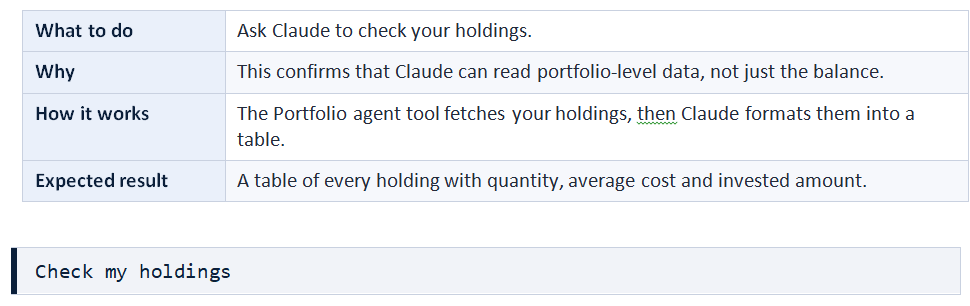
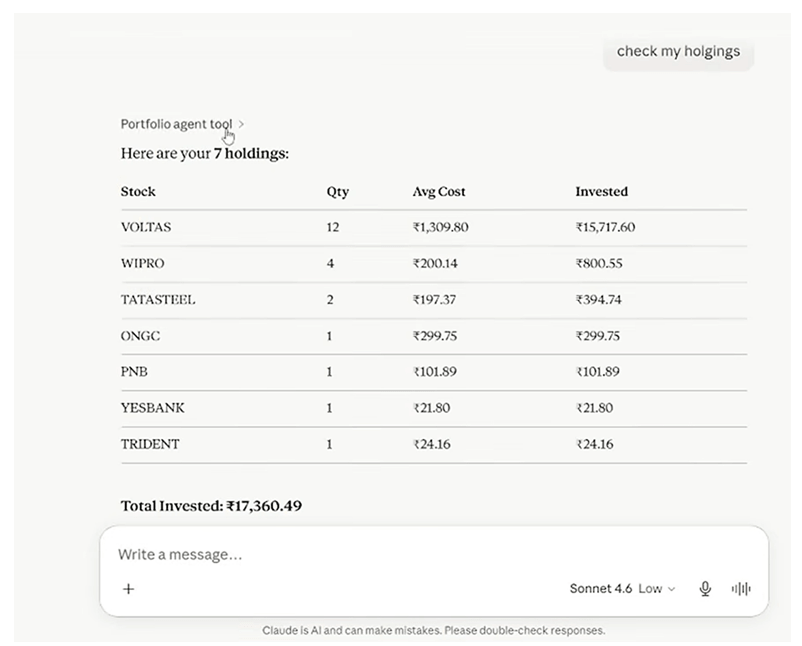
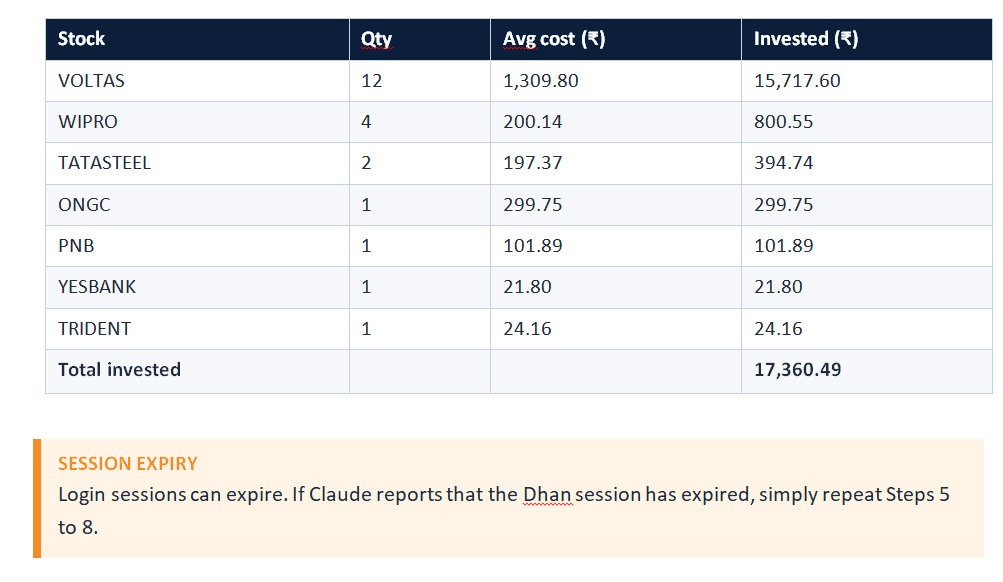
Figure 11: Claude lists seven holdings with quantity, average cost and invested value.
Part 2: From Market Idea to Live Positions
With the connection working, the real value begins. You can hand Claude a market thesis, ask it to research the stocks, and then have it build the position in your account, all in one conversation.
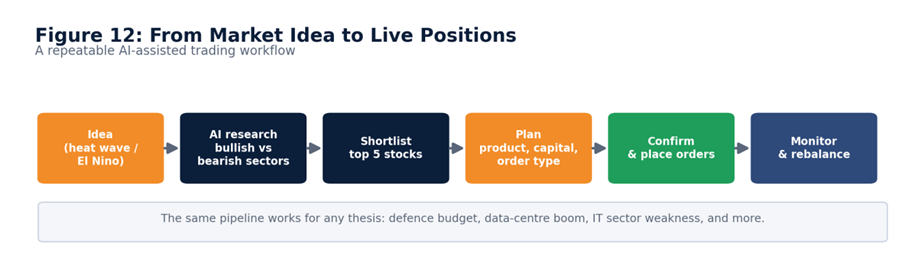
Figure 12: The workflow: idea, AI research, shortlist, plan, confirm and place orders, then monitor and rebalance.
Step 10: Share a Market Idea and Ask for Research
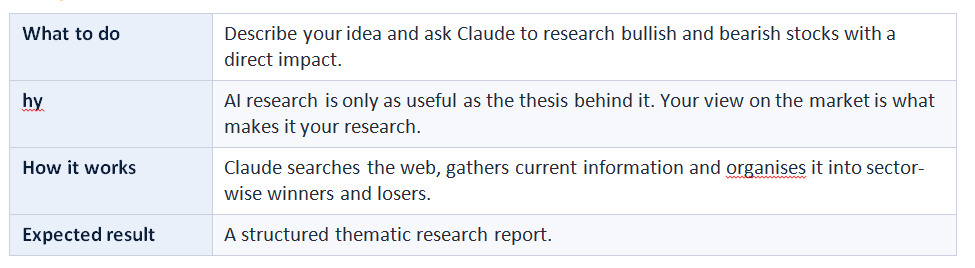
In this example the thesis is a heat wave across India linked to El Nino. Reasoning: if crops suffer, FMCG companies are affected; cooling and power demand should rise; and water scarcity is already visible in cities like Mumbai.
I think there will be a heat wave across India and it will have a financial impact. Research stocks, both bullish and bearish, that have a direct impact on prices due to El Nino. |
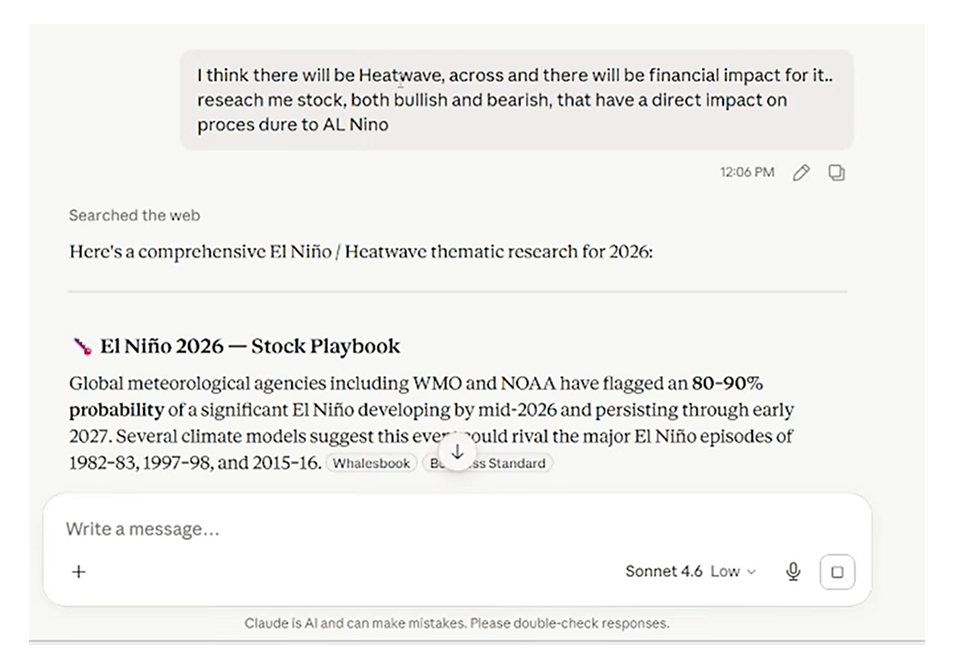
Figure 13: Claude searches the web and opens its El Nino / Heat Wave research. It cites flagged probabilities of a significant El Nino developing by mid-2026.
Claude’s research flagged an 80-90% probability of a significant El Nino developing by mid-2026 and lasting into early 2027, comparing the potential event to the major episodes of 1982-83, 1997-98 and 2015-16. From there it split the market into likely winners and likely losers.
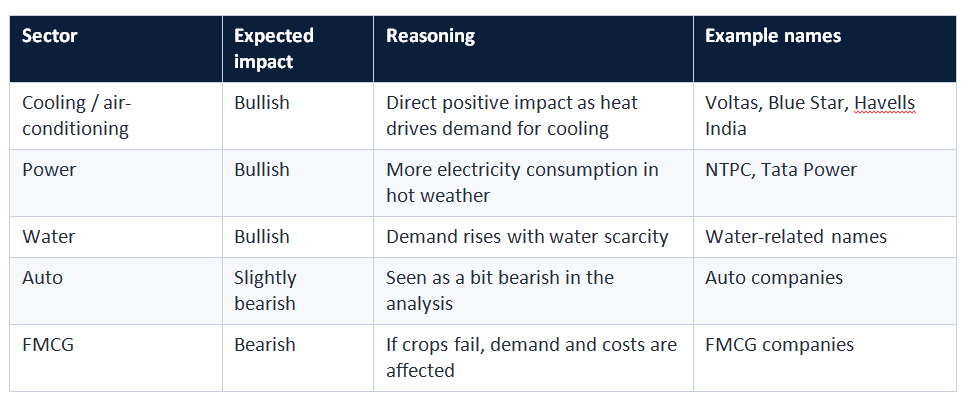
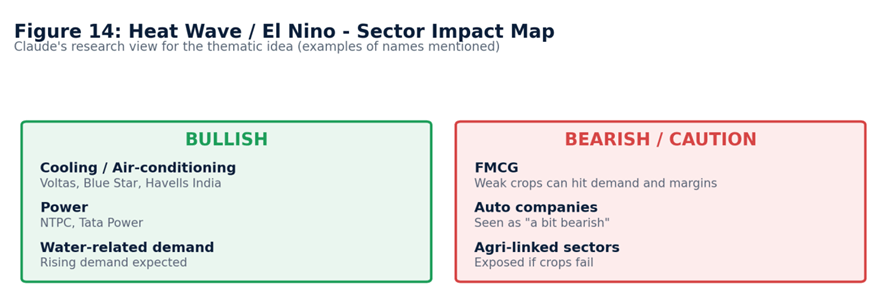
Figure 14: Sector impact map for the heat-wave theme, based on the research described above.
THIS IS AN EXAMPLE THESIS, NOT ADVICE
The El Nino idea is used only to demonstrate the workflow. Form your own view and verify any AI research before acting on it.
Step 11: Ask Claude to Trade the Ideas
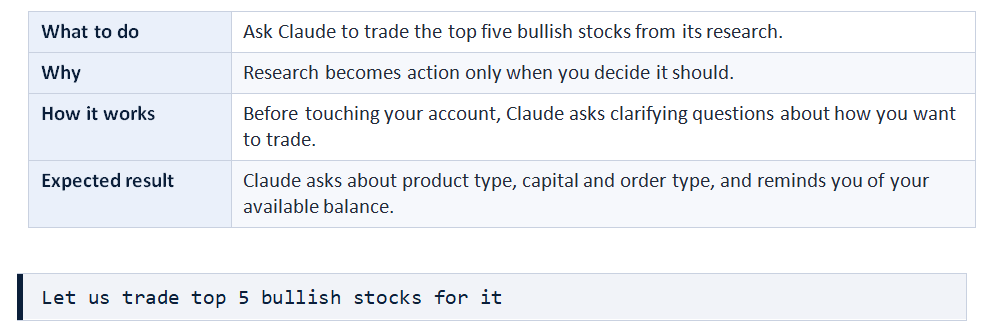
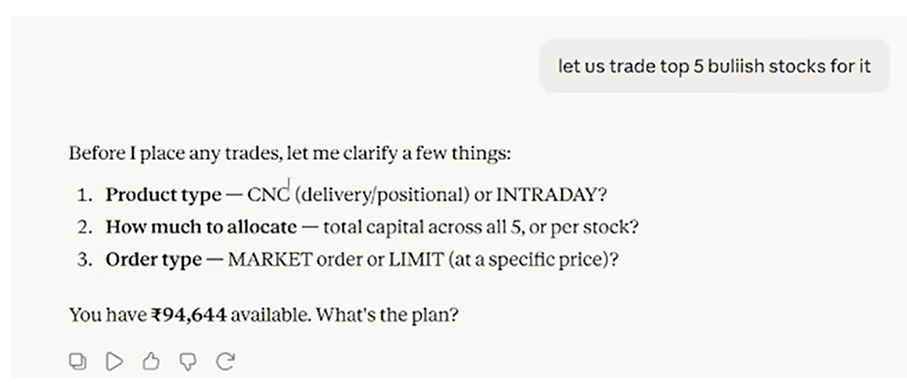
Figure 15: Claude pauses to ask about product type, allocation and order type before placing anything.

Step 12: Answer the Clarifying Questions

In this example the choices were the Intraday product and ₹50,000 for the El Nino portfolio, divided equally among the top five stocks (₹10,000 each).
Intraday order. I have ₹50,000 for this El Nino portfolio.
Divide it equally into the top five stocks and build this position.
Step 13: Review the Proposed Plan
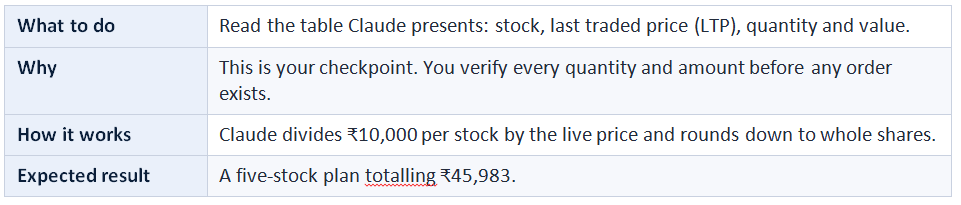
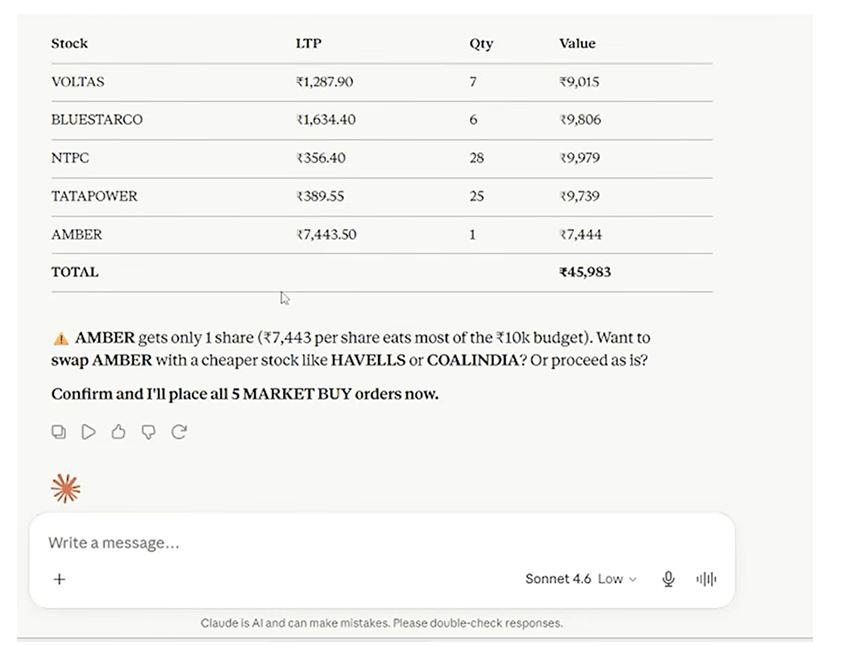
Figure 16: Claude’s proposed basket with live prices, quantities and values, plus a warning about the Amber allocation.
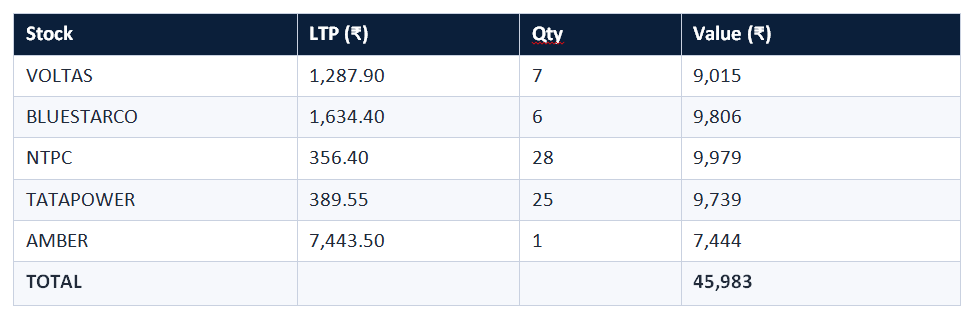
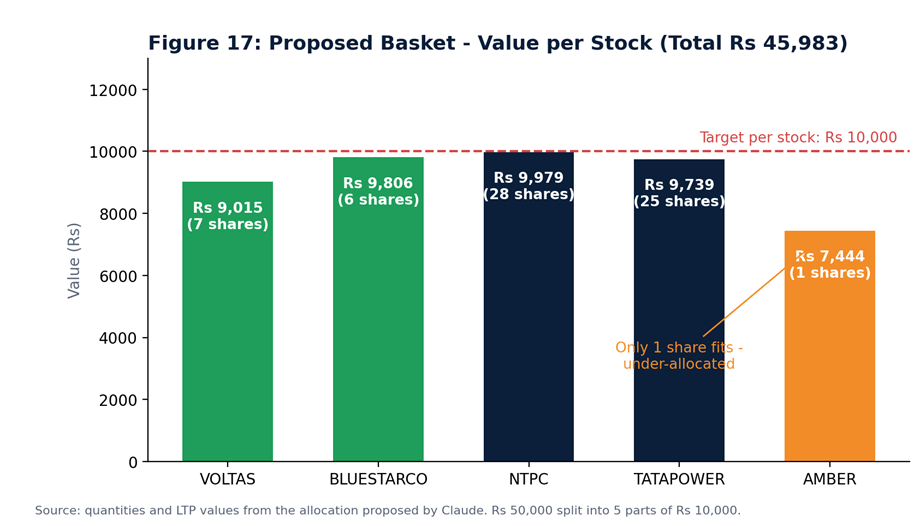
Figure 17: Value allocated to each stock against the ₹10,000 target. Whole-share rounding leaves the total below ₹50,000.
WATCH HIGH-PRICED STOCKS
Amber costs about ₹7,443 per share, so only one share fits the ₹10,000 budget. Claude flags this and offers to swap Amber for a cheaper stock such as Havells or Coal India, or to proceed as is. Reviewing this kind of detail is exactly why the confirmation step exists.
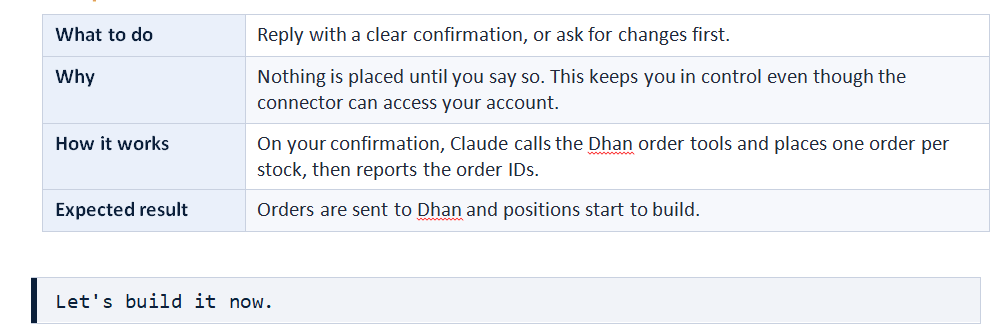
Step 14: Confirm and Build the Position
ORDER TYPE
Claude’s summary described market buy orders, but in Dhan the orders appear as Limit orders priced close to the live price. Always check the order type in your Dhan orders page.
Step 15: Verify the Orders in Dhan
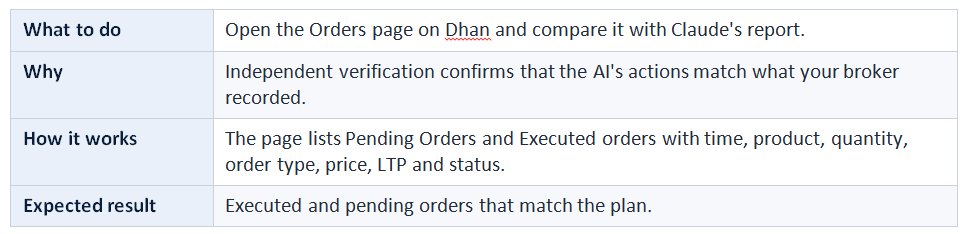
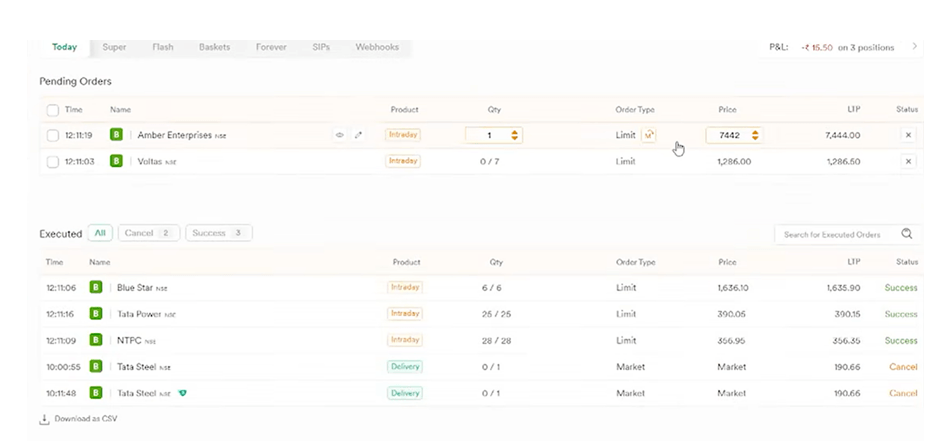
Figure 18: Dhan’s Orders page: Blue Star, Tata Power and NTPC are executed as Intraday limit orders, while Amber and Voltas are still pending.
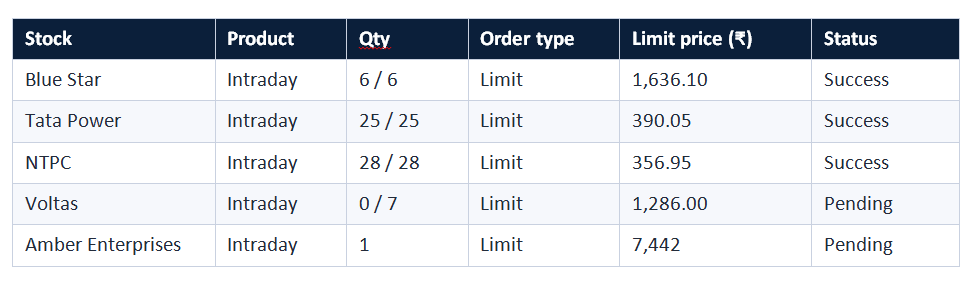
The two Tata Steel delivery entries in the Executed list are earlier cancelled orders and are not part of this basket. Once price reaches the limit, the pending Voltas and Amber orders execute, completing all five positions.
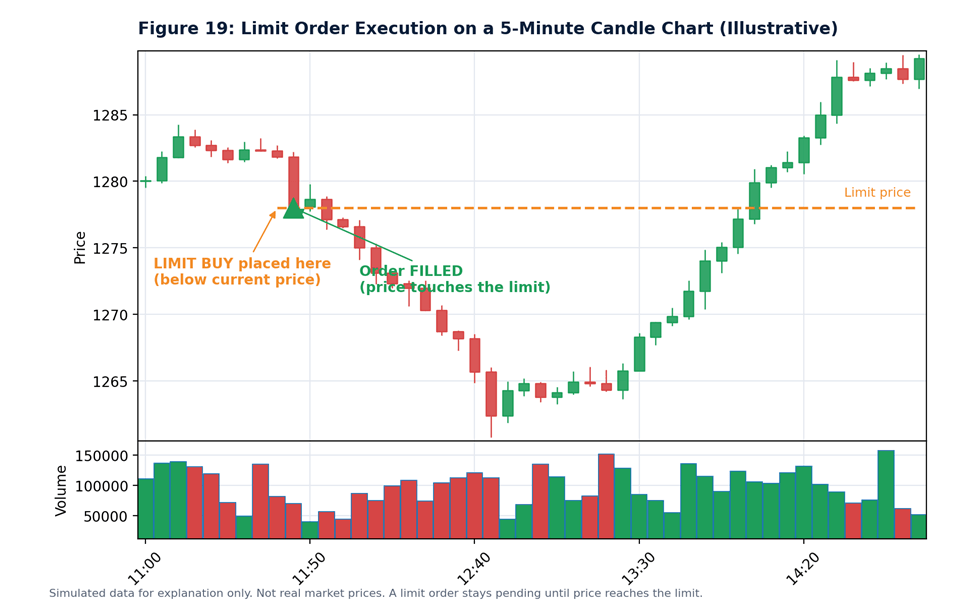
Figure 19: Illustrative 5-minute candle chart: a limit buy stays pending until price trades down to the limit and then fills.
WHY SOME ORDERS STAY PENDING
A limit order fills only at your price or better. If the market has not touched the limit, the order waits in the Pending list. That is why the Amber and Voltas orders were open while the others were already executed.
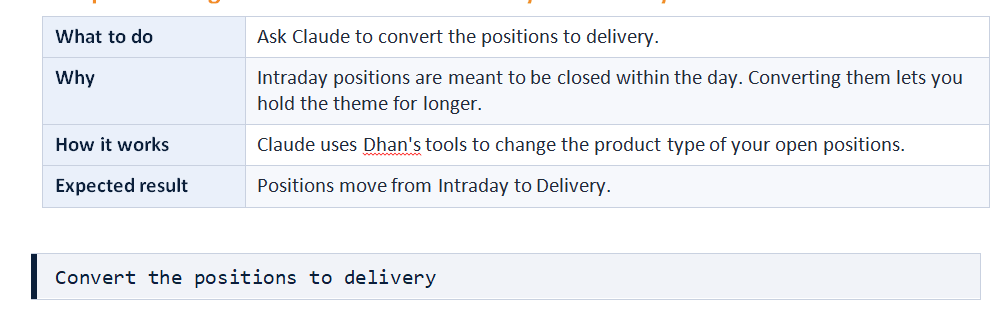
Step 16: Change the Product from Intraday to Delivery
Putting the Trade in Context: Entry and Exit
A thematic idea gives you a reason to enter. It should also come with a plan for leaving. The illustrative daily chart below shows a typical thesis trade with an entry, a target, a stop-loss and two moving averages to judge trend. You can ask Claude to help you define such levels for the positions it builds.
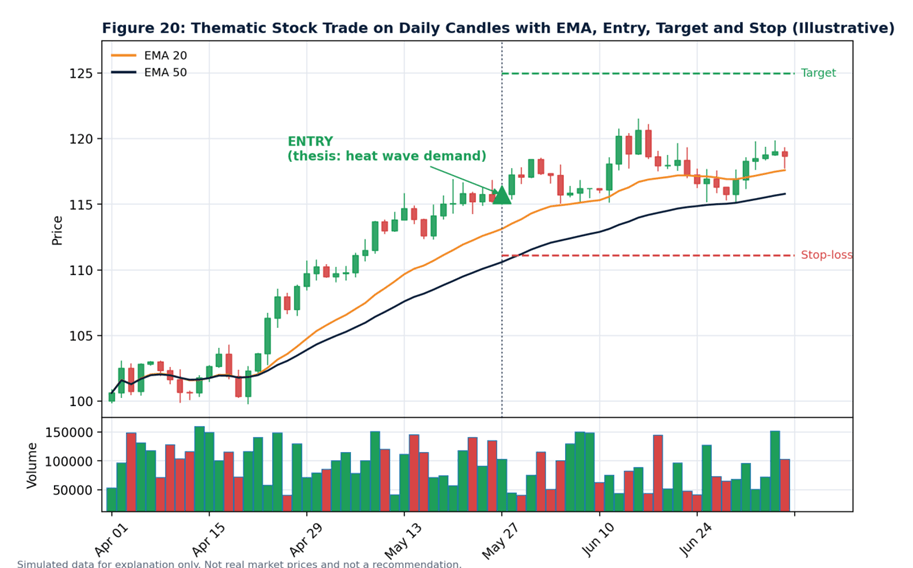
Figure 20: Illustrative daily candle chart with EMA 20 and EMA 50, the entry point and example target and stop-loss levels.
Using the Same Workflow for Other Ideas
The heat-wave example is only one use. Any thesis can go through the same pipeline: research with Claude, plan, confirm and place.
• Defence budget: India’s defence budget may stay strong after a recent period of conflict.
• Data-centre boom: rising infrastructure demand linked to AI.
• IT sector: a view that IT companies could face pressure.
• Any personal idea: research it in Claude, then let the connector place the orders in your account after your confirmation.
Managing the Portfolio Actively
This is not passive investing. Once the positions are built you can return to the same conversation days or months later and ask how the portfolio is performing, compare it against your thesis, and ask Claude to rebalance it.
How is my El Nino portfolio performing now?
Compare it with the original plan and rebalance if needed.
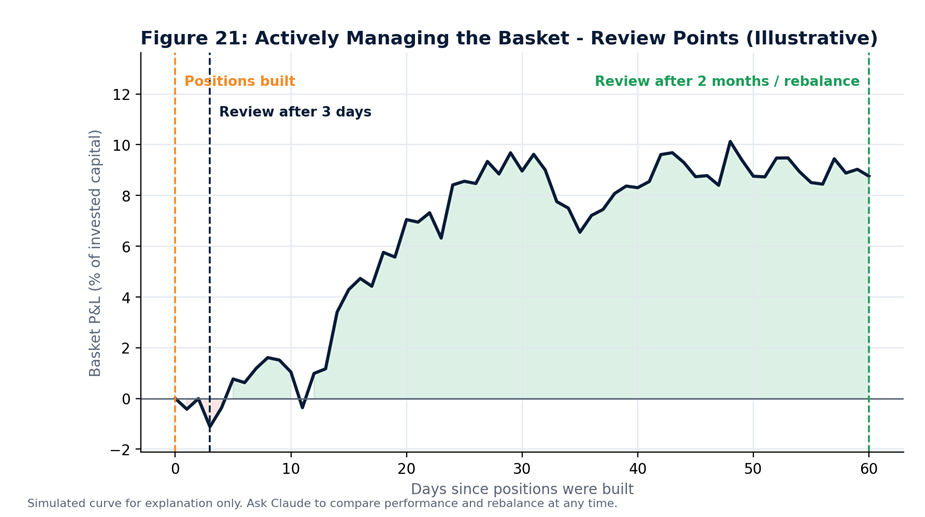
Figure 21: Illustrative basket P&L curve with review points: positions built, a check after three days and a rebalance review after two months.
Best Practices and Troubleshooting
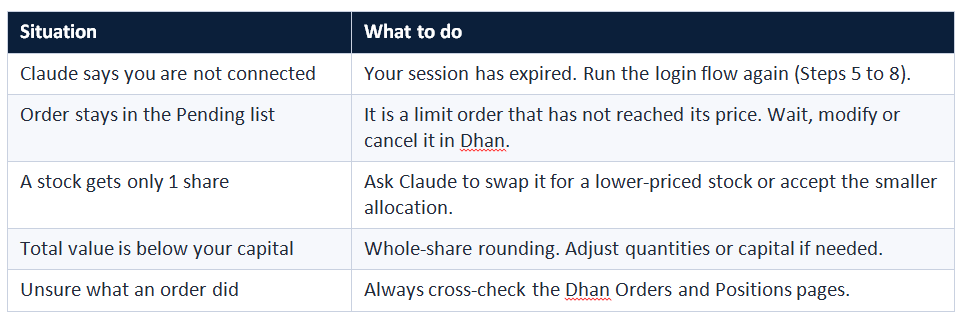
- Give Claude a clear thesis and clear instructions: product, capital and order type.
- Read the plan carefully before you confirm.
- Verify every action in Dhan.
- Start with small amounts while you learn the workflow.
Summary
- MCP is the bridge that lets Claude read your Dhan account and act on it.
- Add the Dhan MCP as a custom connector, review its tool permissions and log in with Dhan’s secure consent flow.
- Once connected, Claude can read your balance, holdings, positions and orders in plain English.
- Give Claude a market thesis, get sector-wise research, then have it plan a basket with your chosen product, capital and order type.
- You stay in control: nothing is executed until you confirm.
- Afterward, review, compare and rebalance the portfolio by chatting with Claude.
Resources
YouTube video walkthrough:
Disclaimer
Investments in the securities market are subject to market risk. Read all the related documents carefully before investing. This guide is for education only and is not investment advice. Stocks and themes mentioned are examples. Charts marked illustrative use simulated data.